EdgeCraft discount guides / Articles
How do I set up a tiered discount on Shopify?
Published
Short answer: Shopify can run spend tiers on its own: make one automatic discount for each tier, each with its own minimum purchase amount. What it doesn't do is tell the shopper how close they are to the next tier. If that message matters to you, an app can add it. If it doesn't, the built-in route is enough, and this guide shows both.
Last checked against Shopify's help center and admin: 2026-11-21.
EdgeCraft, the app used in the second half, is made by the author of this page. The first half doesn't need it.
What a tiered spend discount is
A tiered spend discount takes more off the order the more the shopper spends. One example, used all through this page:
| Cart subtotal | Discount |
|---|---|
| Under $100 | None |
| $100 to $199.99 | 5% off the order |
| $200 or more | 10% off the order |
The highest tier the cart reaches is the only one that applies. A $223 cart gets 10% ($22.30 off), not 5% plus 10%.
Build it with Shopify's own discounts
You need no app. You create one automatic discount per tier. This example needs two.
One automatic discount per tier
- In your Shopify admin, go to Discounts, then select Create discount.
- Select Amount off order.
- Under Method, select Automatic discount.
- Enter a Title, for example
Spend $100, save 5%. The admin notes that customers see it in their cart and at checkout. - Under Discount value, choose Percentage and enter
5. - Under Eligibility, leave All customers (you can also limit it to specific customers, a customer segment or a market).
- Under Minimum purchase requirements, select Minimum purchase amount ($) and enter
100. Shopify counts product prices only: shipping and taxes aren't included. - Set the Combinations (next section), check the start date under Schedule, then select Save. The discount is live from its start date.
- Repeat for the second tier: title
Spend $200, save 10%, percentage10, minimum purchase amount200.
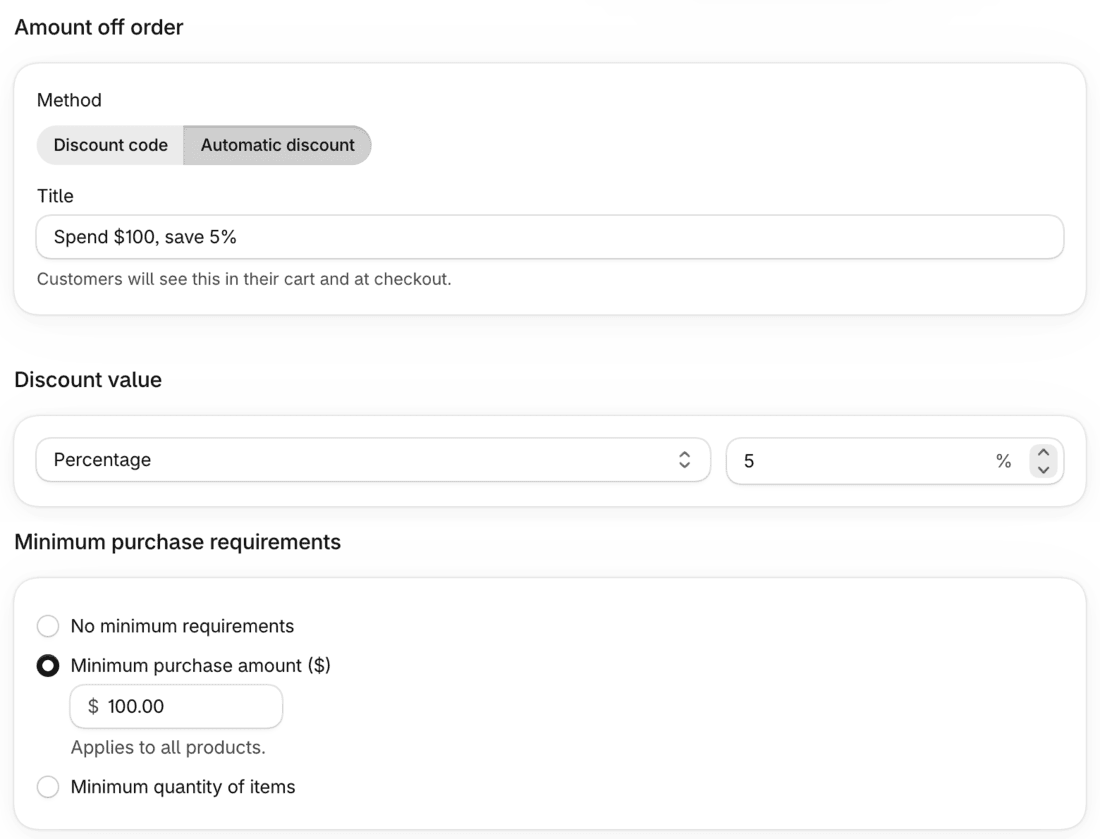
A discount takes one minimum requirement: a minimum purchase amount or a minimum quantity of items. Shopify's help page describes no way to set several thresholds in one discount, which is why each tier is its own discount.
Stop the tiers stacking
A new discount combines with nothing until you add a class under Combinations. Leave Order discounts unticked on every tier. Shopify's help page says that when discounts can't combine, the best discount for the customer's cart is applied, so a $223 cart gets the 10% tier and not both.
If you run a free shipping discount, tick Shipping discounts on each tier and Order discounts on the free shipping discount, so the tier and free shipping can apply to the same order. That's what the example below does.
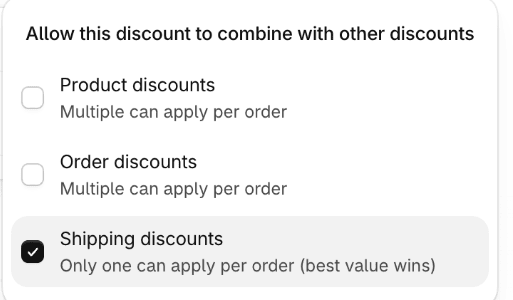
Combining order discounts with other order discounts is available only to eligible stores, and each discount's Combinations card decides it. Two tiers combine only when both have Order discounts ticked, so tick it on tiers only if you want them added together.

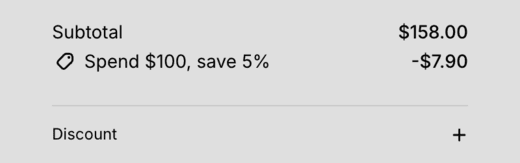
Check it before you rely on it. Build a cart just over each threshold and one just under, and read the discount line in the cart and at checkout. On our demo store, with the two tiers above:
| Cart subtotal | Discount applied |
|---|---|
| $90 | None |
| $112 | 5%: $5.60 off |
| $158 | 5%: $7.90 off |
| $223 | 10%: $22.30 off (not 15%) |
What the shopper sees
Once the cart qualifies, the cart and checkout show the tier's title and the amount taken off. Nothing tells a $158 cart that $42 more earns 10%, and Shopify's discount help pages describe no setting that does.
Where Shopify's built-in discounts stop
The method above works, and for many stores it's the right answer. It stops in four places:
- No next-tier message. A shopper at $158 isn't told that $42 more earns 10%. They may reach a tier by accident or not at all. Shopify's help pages describe no setting for this.
- One discount per tier. A four-tier ladder takes four of the 25 automatic discounts a store can have active (app discounts count toward the same 25), and changing the ladder means editing four discounts so they still agree.
- Stacking depends on the Combinations card of every tier. Tiers combine when two of them both have Order discounts ticked, where your store is eligible for order-with-order combining. The setting is easy to see; it's also easy to forget on the third tier.
- A theme or third-party bar is a second system. If you add a bar that shows the next tier, its threshold is typed in by hand. When someone changes the discount and not the bar, they disagree. That's a risk of any setup with two copies of a number, not of one product.
Build it with EdgeCraft
EdgeCraft is a Shopify app. Its tiered spend discount is a single discount with a ladder of up to 10 tiers, and a cart progress bar shows shoppers what they've earned and what the next tier needs. It's a normal Shopify discount: it appears in your Discounts list, it edits no product price, and you paste no theme code. Switching the discount off stops it.
Plan: the tiered spend discount and the cart progress bar are both on the Free plan. Free allows 3 tiers per discount, 3 active discounts and 50 discounted orders a month; Starter and above allow up to 10 tiers.
Create the tiered spend discount
- In EdgeCraft, select Create discount, then Tiered spend discount.
- In Campaign, enter an internal Title. Shoppers don't see it; the line under the field shows the label they see at checkout.
- Under Tiers, enter a Spend threshold and a Percentage off:
100and5. Select Add row and enter200and10. Both columns must increase from row to row. - Optional: enter a Maximum discount amount to cap the saving, and add exclusions for products or collections that shouldn't count or be discounted.
- In Method, confirm Automatic discount. In Combinations, choose what it can combine with. Set Active dates.
- Check Summary, then select Save.
- The discount is created switched off. Turn on Enabled in the Status card and select Save to make it live.
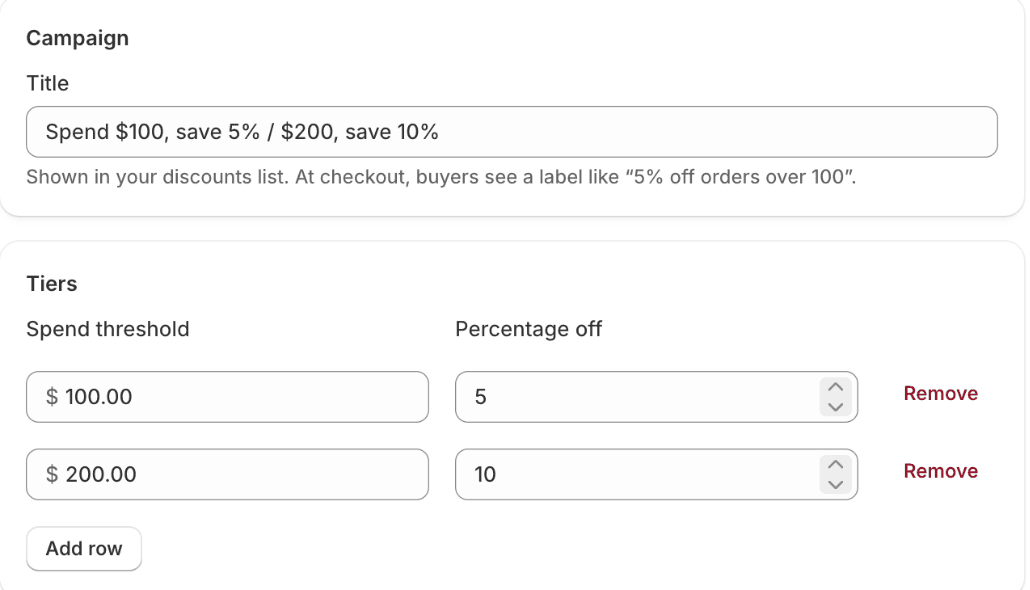
The full steps are in the tiered spend discount guide. For a single threshold ("spend $100, get an amount off"), use Spend X, get an amount off, also on the Free plan.
Turn on the cart progress bar
- Go to Settings and, under Cart progress bar, turn on Show the progress bar.
- Write the Message while the buyer is short and the Message once they've earned it. Use
{amount}for what's left to spend and{reward}for the discount unlocked. - Under Storefront, select Turn on app embed. The theme editor opens with EdgeCraft switched on; select Save there. The bar places itself in the cart drawer or cart page of Dawn and Horizon, and falls back to the spot above the subtotal on other themes. You don't edit theme code.
- Select Save on the Settings page.
App embeds are off after install and an app can't switch them on for you, so step 3 is yours. The Settings guide and Add EdgeCraft to your theme cover both screens.
Check it: the cart and checkout show the same saving
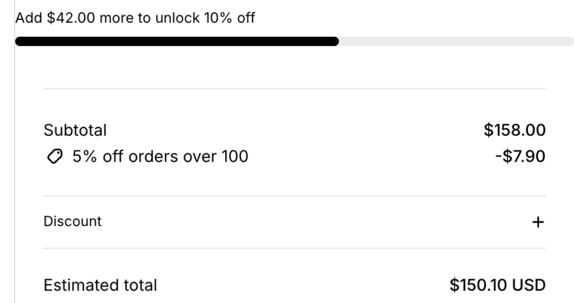
Here's one cart on our demo store (Horizon theme), shown twice. At $158 the cart drawer shows the 5% saving, $7.90, and that $42.00 more unlocks 10%:
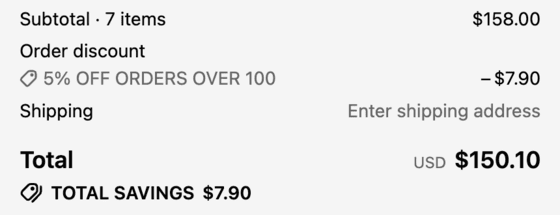
At checkout, before payment, the order summary shows the same saving and the same total, $150.10:
That's what the bar is designed to do. To check your own store, build a cart, read the saving in the cart, then read it at checkout; do it again with a discount code or a second currency if you use them, because combinations and currency conversion can change a total.

Which one should you use?
| Shopify's own discounts | EdgeCraft | |
|---|---|---|
| Fits when | You have 1–3 tiers and shoppers don't need to see the next one before checkout | Shoppers should see the next tier in the cart, or you want one discount instead of one per tier |
| Cost | Included | Free plan covers a 3-tier ladder and the bar |
| Tiers | One discount per tier | One discount, up to 10 tiers |
| Exclusions (some products don't count) | Not covered by the steps above | Set once for the whole ladder |
| Cart message | None built in | Cart progress bar |
| Stacking | Each tier's Combinations card | One discount, highest tier wins |
| Counts against the 25 | One per tier | One |
Both can be right for different stores. If you're not sure, start with the native route and add the bar later; nothing you built is lost. For the whole map of what Shopify handles natively, see Shopify discounts vs discount apps.
Limits worth knowing
- Free plan: 3 tiers per discount, 3 active discounts, 50 discounted orders a month. Paid plans allow more; each has a 14-day free trial.
- The bar and exclusions: the cart progress bar can't show a tiered discount that excludes a collection. The app has a separate Qualifying-subtotal explainer (Starter and up) that tells shoppers what doesn't count toward the first tier.
- Shopify's 25: every automatic discount, native or from an app, counts toward Shopify's cap of 25 active automatic discounts. EdgeCraft adds no limit of its own on the Pro plan, but Shopify's remains.
- Gift cards: EdgeCraft never counts gift cards toward a tier. Shopify's order discounts use two totals that both have to meet the minimum; one excludes purchased gift cards and one includes them. Read the line on Shopify's amount-off help page for your case.
FAQ
Do the tiers stack? Not by design. With Shopify's own discounts, leave Order discounts unticked in each tier's Combinations card, and Shopify applies the best discount for the cart. In EdgeCraft one discount holds all tiers and only the highest tier met applies.
Does it work with discount codes? That depends on the Combinations setting. In Shopify, a customer can use up to 5 product or order discount codes and 1 shipping discount code on one order, subject to each discount's combination setting. In EdgeCraft, choose the combinations on the tiered spend discount. The EdgeCraft FAQ has more on combining.
Do gift cards count toward the minimum? In EdgeCraft, no. In Shopify, for order discounts, the "before product discounts" total excludes purchased gift cards and the "after product discounts" total includes them, and both have to meet the minimum. Check the current wording on Shopify's amount-off help page.
Can I cap the discount? In EdgeCraft, yes: set a Maximum discount amount. If the calculated discount is higher, the cap is granted as a fixed amount. Shopify's amount-off help page describes no cap for percentage order discounts.
Install EdgeCraft free
If shoppers should see the next tier before checkout, you can try the app on the Free plan: Install EdgeCraft free.
Related guide: How do I add a free shipping progress bar on Shopify?, for the same cart message on a free shipping offer.